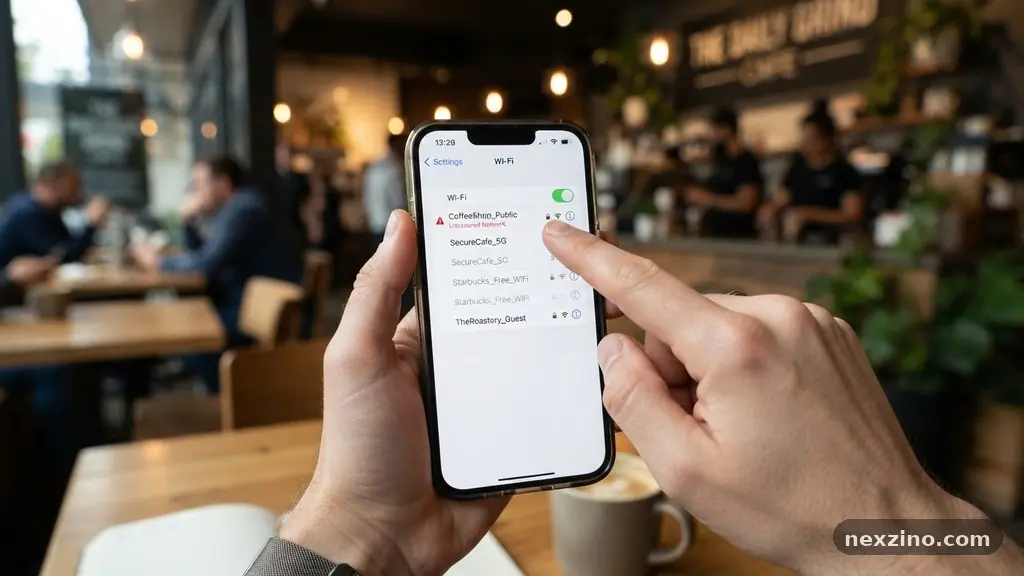
Knowing what to check before connecting to public Wi-Fi is essential for keeping your personal data safe in an increasingly digital world. Whether you are at a coffee shop, an airport, or a hotel, these networks often lack the necessary safeguards to protect your private information from prying eyes.
By taking a few moments to evaluate your surroundings and your device settings, you can significantly reduce the risk of falling victim to cyber threats. This article provides the practical steps and technical insights needed to stay secure while enjoying the convenience of free internet access on the go.
Confirming Network Authenticity
The first thing you must do is ensure you are connecting to a legitimate network rather than a deceptive one. Attackers often deploy a rogue access point, which is a malicious hotspot designed to mimic the name of a real service, such as “CoffeeShop_Free_WiFi.”
These networks are crafted to trick you into connecting so the operator can intercept your traffic. Always ask a staff member or look for official signage to confirm the exact name of the network provided by the establishment.
If you see multiple networks with similar names, treat this as a major red flag. A legitimate business typically provides one primary, consistent network name for its guests.
Connecting to an unverified signal puts your device at risk of a man-in-the-middle attack, where an adversary sits between your device and the internet to read or alter your data. Never assume that a network with a high signal strength is the correct one, as attackers boost their signals to lure unsuspecting users.
Evaluating Encryption and Protocol Standards
You should check if the network requires a login through a captive portal or if it is completely open. While a captive portal might seem like an extra step, it often indicates a managed network that is at least somewhat monitored by the business.
An open, password-free network should be approached with extreme caution because it lacks basic WPA3 or even older WPA2 security protocols. If a network does not require any form of network authentication, any traffic sent over it is potentially visible to others on the same local segment.
Always prioritize websites that use HTTPS, as this provides a layer of TLS encryption for your browser traffic. Even if the Wi-Fi network itself is insecure, HTTPS ensures that the content of your communication remains scrambled and unreadable to third parties.
You can verify this by checking for a padlock icon in your browser’s address bar. For a more detailed breakdown of how these protocols protect your data, you can visit the Cybersecurity and Infrastructure Security Agency’s guidance on public Wi-Fi.
Utilizing a Virtual Private Network
The most effective way to secure your connection is by using a Virtual Private Network, or VPN. A VPN creates an encrypted tunnel between your device and a server operated by the VPN provider, effectively masking your activity from everyone on the local network.
This makes it impossible for someone performing packet sniffing to see what websites you are visiting or what data you are transmitting. Even if you connect to a malicious access point, the encryption provided by the VPN acts as a critical shield.
When choosing a VPN, ensure it is enabled before you even open your browser. Many modern services offer an “auto-connect” feature that triggers as soon as your device detects an unsecured network.
This prevents the accidental transmission of unencrypted data during the critical seconds after you join the Wi-Fi. Using a VPN is the single most important technical step you can take to protect your digital identity while traveling.
Securing Your Endpoint Settings
Before you connect, take a moment to review your device’s security configuration. Ensure your firewall settings are active and that your operating system is fully updated to the latest version.
Modern operating systems frequently include patches for vulnerabilities that attackers use to gain unauthorized access to connected devices. If you are using a laptop, double-check that your file and printer sharing features are turned off to prevent others on the network from accessing your local files.
It is also wise to disable the “auto-join” feature for Wi-Fi networks on your phone and tablet. This setting can cause your device to silently connect to known network names, potentially exposing you to a rogue access point that happens to use a common name like “Airport_WiFi.”
By forcing your device to ask for permission before joining any network, you maintain control over your digital footprint. Below is a simple table comparing the risks associated with different types of connection behaviors.
| Connection Practice | Risk Level | Security Impact |
|---|---|---|
| Using a VPN | Low | High encryption and privacy |
| HTTPS browsing only | Medium | Protects web data, not apps |
| Open, unencrypted Wi-Fi | High | Full exposure of data packets |
| Rogue access point | Critical | Total compromise of device |
Managing Two-Factor Authentication
Even with the best security, account credentials can be stolen if you aren’t careful. Implementing two-factor authentication (2FA) is a vital defense mechanism, especially when accessing sensitive accounts like banking or email from public locations.
With 2FA enabled, an attacker would need more than just your password to access your account; they would also need the physical device or the one-time code sent to your phone. This creates a significant hurdle that stops most automated attacks in their tracks.
* Enable app-based authenticators instead of SMS codes.
* Use hardware security keys for your most important accounts.
* Review active login sessions on your primary services.
* Avoid saving passwords in your browser while on public networks.
By following these habits, you ensure that even if your connection is compromised, your accounts remain locked to unauthorized users. It is a simple, non-technical step that provides an immense amount of peace of mind. Always prioritize platforms that offer robust 2FA options as part of your standard account security setup.
Identifying Signs of Compromise
While you are connected, stay vigilant for unusual behavior on your device. If you notice your browser redirecting you to unfamiliar websites or displaying unexpected security certificate warnings, disconnect immediately.
These are common indicators of a man-in-the-middle attack or a DNS spoofing attempt. If your connection speed drops significantly or the internet becomes intermittent, it could be a sign that someone is intercepting or manipulating your traffic.
Keep an eye on your battery and data usage as well. Malicious software or persistent background monitoring can sometimes cause a device to heat up or drain its battery faster than usual.
If you suspect your device has been compromised, perform a full malware scan as soon as you have access to a secure, private network. It is always better to be overly cautious than to assume everything is fine when you see clear warning signs.
Considering Mobile Hotspots
When the situation allows, the best way to avoid public Wi-Fi risks is to use your own mobile hotspot instead. Using your phone as a tethered data source provides you with a private, cellular-based connection that you control entirely.
This removes the reliance on third-party infrastructure and the associated threat of rogue access points or packet sniffers. While mobile data can be more expensive or limited by your plan, the security benefits are undeniable.
If you must use public Wi-Fi for heavy tasks, consider doing them over a mobile hotspot instead. Save the public Wi-Fi for low-stakes activities, such as reading news or checking the weather, where your personal information is not being transmitted.
By creating this separation between your sensitive and non-sensitive tasks, you minimize the surface area for potential attacks. Always treat your cellular connection as the primary, secure path for any work involving login credentials or financial transactions.
Frequently Asked Questions
Is it safe to check my bank account on public Wi-Fi?
It is generally discouraged to access financial accounts on public Wi-Fi. If you must do so, always use a reputable VPN to encrypt your connection and ensure you are using the bank’s official, verified mobile application rather than a web browser.
What happens if I forget to turn off file sharing?
If file sharing is enabled, other users on the same network may be able to see and potentially access files or folders you have set to “shared.” This can lead to unauthorized access to your private documents or even allow an attacker to push malicious files onto your computer.
Do I need an antivirus if I use a VPN?
Yes, a VPN only encrypts your data in transit; it does not protect your device from malware, viruses, or phishing attempts. A comprehensive security strategy includes both a VPN for network protection and an updated antivirus solution for endpoint security.
Why does my device ask about network certificates?
A prompt asking you to trust a new network certificate is a major red flag on a public network. It often suggests that an attacker is trying to perform a man-in-the-middle attack by intercepting your encrypted traffic and presenting a fake certificate to decrypt it.
How do I know if a network is a rogue access point?
It is often difficult to tell, but rogue access points may have names that are slightly misspelled or different from the official network. If the connection requires you to install a “security certificate” or specific software to join, disconnect immediately, as this is a common tactic used to install spyware.
Conclusion
Staying secure online is a matter of habits and awareness rather than just expensive software. Knowing what to check before connecting to public Wi-Fi allows you to enjoy the benefits of connectivity without compromising your personal information. By verifying network names, using a VPN, and keeping your device settings tight, you build a strong defense against common cyber threats.
While these steps might take a few extra moments, they are well worth the effort to protect your digital life. Remember to stay vigilant, keep your software updated, and always prioritize your privacy when using shared networks. With these practices in place, you can browse with confidence wherever your day takes you.