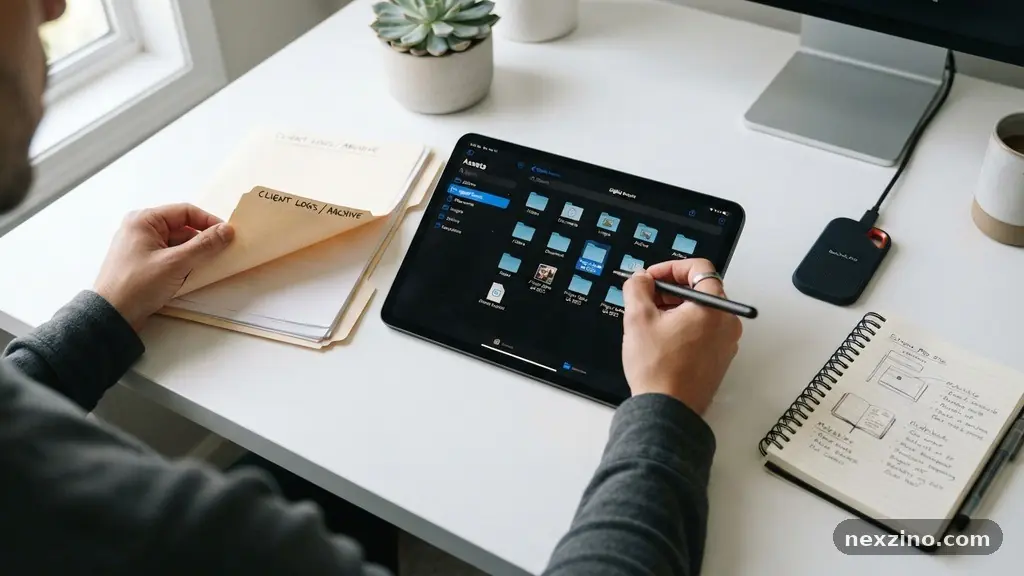
Ensuring your digital assets remain safe when performing system updates or hardware upgrades is a task that requires careful planning. Properly backing up important files before making major computer changes prevents the permanent loss of documents, photos, and critical system configurations. By taking a proactive approach, you gain the confidence to proceed with OS installations, partition resizing, or drive replacements without the lingering fear of data corruption.
This process is not merely about copying files to a folder; it is about creating a reliable recovery path that protects your work, memories, and time. Setting up a secure workflow today saves countless hours of frustration and potential data recovery costs in the future.
Identifying the Data That Requires Protection
Before you start any significant computer modification, you must take a complete inventory of what lives on your machine. Most users have a mix of personal documents, media files, and application-specific data stored across various folders.
You should prioritize your user profile folders, which typically contain your desktop files, documents, downloads, and photos. Neglecting these areas often leads to the most common data loss scenarios during a failed system migration.
Beyond standard files, consider the hidden data that keeps your digital life running smoothly. Your web browser stores bookmarks, saved passwords, and extensions that are easy to forget until they are gone.
Many professional applications also keep configuration files in hidden directories, such as the AppData folder on Windows or the Library folder on macOS. Taking a moment to check these locations ensures that your software settings remain intact after you finish your major computer changes.
You should also account for any localized databases or email archives stored directly on your machine. If you use desktop-based email clients like Outlook or Thunderbird, your entire archive might be saved as a single large file.
Moving this file without a proper export or backup can lead to a complete loss of your communication history. Mapping out these locations creates a clear roadmap for your backup strategy, ensuring that nothing important is left behind when you wipe or upgrade your system.
Choosing the Right Storage Medium
Selecting the correct hardware for your backup is a critical step in safeguarding your information. External SSD drives are currently the gold standard for speed and durability, offering fast transfer rates that make backing up large volumes of data feel instantaneous.
Because they lack moving parts, they are significantly more resistant to physical shock than traditional mechanical hard drives. This makes them ideal for users who need to transport their backups or keep them stored safely in a desk drawer.
If you have a massive amount of data, you might consider high-capacity mechanical external hard drives. While they are slower than solid-state options, they provide a much higher storage-per-dollar ratio, which is helpful if you are archiving years of high-resolution video or photography.
For advanced users, NAS devices offer a networked approach to storage. These systems allow for automatic backups from multiple computers in your home, providing a centralized repository that stays updated without manual intervention.
Cloud storage services serve as an excellent secondary layer of protection for your most sensitive files. Keeping a copy of your documents in the cloud ensures that even if your physical hardware fails or is damaged during a move, your data remains accessible from anywhere.
Many users benefit from a hybrid strategy: a fast local backup for quick restoration and a remote cloud backup for long-term safety. This dual-layered approach maximizes your data redundancy, ensuring that you have multiple avenues for recovery if something goes wrong.
The Mechanics of Disk Imaging
When you are preparing for a major operating system overhaul, simple file copying may not be enough. Disk imaging software creates a sector-by-sector clone of your entire drive, capturing not just your files, but the OS state, registry settings, and installed programs.
This allows you to restore your computer to an exact point in time if your system update fails or if a new installation causes unexpected compatibility issues. Using imaging tools effectively turns your entire computer into a snapshot that can be deployed at a moment’s notice.
Before running an image, ensure that your destination drive has enough capacity to hold the entire contents of your primary drive. Many imaging utilities offer compression features that reduce the footprint of the image file, but you should always plan for the total capacity of your source disk.
You should verify the integrity of the image after the process completes. A corrupted image file is as useless as no backup at all, so take the time to run verification tests within the software.
Using a tool that supports incremental backups can save you significant time during the preparation phase. Instead of creating a full, massive image every time you make a minor change, incremental backups only save the data that has changed since the last full run.
This makes the process much more efficient and encourages you to back up more frequently. By keeping your images current, you ensure that you are never more than a few hours away from a perfectly functional system state.
Implementing File Versioning and Encryption
Data safety goes beyond just making a copy; it involves ensuring that you have access to the right version of your work. File versioning systems keep track of changes made to your documents over time, allowing you to roll back to an earlier draft if you accidentally overwrite a file or if a file becomes corrupted. Many cloud synchronization platforms and specialized backup software include built-in versioning, which is a lifesaver for creative professionals and students who frequently update their projects.
Security is just as important as accessibility, especially if your backups include personal financial documents or private correspondence. You should always prioritize encryption standards that meet modern requirements, such as AES-256.
Many external drives come with proprietary software that allows you to encrypt the entire drive with a password. If your backup drive is ever lost or stolen, this layer of protection ensures that your private information remains unreadable to unauthorized parties.
If you are using cloud storage, check if the provider offers zero-knowledge encryption. This means that only you hold the keys to decrypt your data, and the service provider cannot access your files even if they wanted to.
When combined with strong, unique passwords, this ensures that your offsite backup is just as secure as the data stored inside your home. Taking these precautions protects your digital identity while you are busy managing your hardware and software transitions.
Comparing Backup Methods
Choosing the best approach depends on your specific needs, budget, and the amount of data you manage. The following table provides a breakdown of common backup solutions to help you decide which combination works best for your situation.
| Backup Method | Best For | Key Benefit |
|---|---|---|
| External SSD | Frequent, fast backups | High speed and physical durability |
| Cloud Storage | Offsite, remote access | Protection against physical disasters |
| NAS Devices | Multi-computer households | Centralized and automated syncing |
| Disk Imaging | Full system restoration | Captures OS state and settings |
Each of these methods carries its own set of trade-offs. For example, while cloud storage is incredibly convenient for file access, it is limited by your internet upload speed and ongoing subscription costs. Conversely, a NAS device requires an upfront hardware investment and some technical knowledge to configure properly.
You must weigh these factors against the importance of the data you are protecting. For most users, a primary local backup combined with a secondary cloud sync provides the optimal balance of speed and security.
The Importance of Testing Your Recovery
A backup is only as good as your ability to restore from it. Too many users perform regular backups but never attempt to verify that the files are actually usable. Before you proceed with your major computer changes, perform a test restoration of a few random files from your backup drive.
This simple action confirms that your hardware is working correctly and that the data is not corrupted. It also familiarizes you with the restoration process, which is the last thing you want to be learning while in a state of panic.
You should also test your system image by booting from a recovery media disk or USB drive. Most disk imaging software allows you to create a bootable environment that can load your backup even if the main operating system fails to start.
Testing this boot process ensures that your computer recognizes the backup hardware when the OS is inaccessible. Knowing that you can successfully boot from your recovery media gives you a massive safety net when you are preparing for a major system migration.
Documenting your backup and recovery process is a final step that is often overlooked. Keep a simple log or a digital note detailing where your backups are stored, the software versions used, and any passwords required for encrypted volumes.
If you are ever away from your computer and a family member needs to help restore your files, this information becomes invaluable. A well-documented process minimizes the stress of data management and ensures that you can always return to your files when needed.
Best Practices for Data Migration
When you are finally ready to move your data to a new system, approach the process in stages. Start by verifying the integrity of your backup one last time before you perform any destructive actions on your old drive.
Once you have confirmed that your files are safe, copy your most critical folders to the new machine first. This ensures that you have access to your essential work immediately, even if you are still in the process of transferring larger media libraries.
If you are transitioning to a new operating system, be mindful of differences in file system hierarchy. Sometimes, moving data directly from one OS to another can cause issues with permissions or file paths.
Using a dedicated file migration tool can help automate this process, mapping your user folders to the correct locations on the new system. These tools are often designed to handle the nuances of transferring settings and preferences alongside your raw data.
Remember to take your time and avoid rushing the transfer. It is easy to make mistakes when you are excited about a new computer setup, but patience is your best friend during this phase. If you encounter errors during the transfer, stop and investigate the cause rather than forcing the process to continue.
For more detailed information on managing your storage and hardware safely, you can visit the National Institute of Standards and Technology for guidance on standard data security practices. Following these careful steps ensures that your transition is successful and your data remains perfectly intact.
Frequently Asked Questions
How often should I update my backups?
You should aim to update your backups whenever you make significant changes to your files or system. For daily work, an automated daily backup schedule is ideal to ensure you never lose more than a day’s worth of progress. If you are preparing for a major computer change, perform a fresh, full backup immediately before starting the process.
Do I really need both local and cloud backups?
Yes, having both is highly recommended for true data redundancy. A local backup is fast for recovering files, but it doesn’t protect against physical risks like fire or theft that could destroy your computer and your backup drive simultaneously. A cloud backup provides that critical offsite safety net that keeps your data secure regardless of what happens in your physical environment.
What should I do if my backup drive runs out of space?
If your storage is full, you have two primary options: prune your existing backups or upgrade your hardware. You can delete older, unnecessary versions of files or images to clear space, but be careful not to delete your most recent full backup. Alternatively, purchasing a larger external drive is a cost-effective way to expand your capacity and accommodate your growing data needs.
Is it safe to keep my backup drive plugged in all the time?
Keeping a drive connected constantly makes it vulnerable to power surges, malware, or accidental deletion. While it is convenient for automated backups, it is safer to disconnect the drive when the backup process is complete. If you prefer to leave it connected, ensure that you have surge protection in place and that your computer is protected by reliable security software.
What is an incremental backup and why should I use it?
An incremental backup only copies the data that has changed since the last backup, rather than copying everything again. This method saves significant time and storage space, making it much easier to keep your backups frequent and up to date. Most modern backup software handles this process automatically, allowing you to maintain a current state without manual effort.
Conclusion
Backing up important files before making major computer changes is the single most effective way to ensure your digital life survives any technical mishap. By inventorying your data, choosing a reliable storage medium, and employing techniques like disk imaging and encryption, you create a safety net that allows you to experiment and upgrade with total confidence. Taking these steps today prevents the heartbreak of permanent data loss and ensures that your documents, memories, and software configurations remain yours to keep.
Your commitment to protecting your data is a hallmark of a thoughtful digital citizen. As you prepare for your next hardware upgrade or system migration, follow the steps outlined here to ensure your files are secure.
If you find yourself unsure about a specific step, take the extra time to verify your process before proceeding. Your future self will certainly thank you for the diligence and care you put into securing your most valuable digital assets.