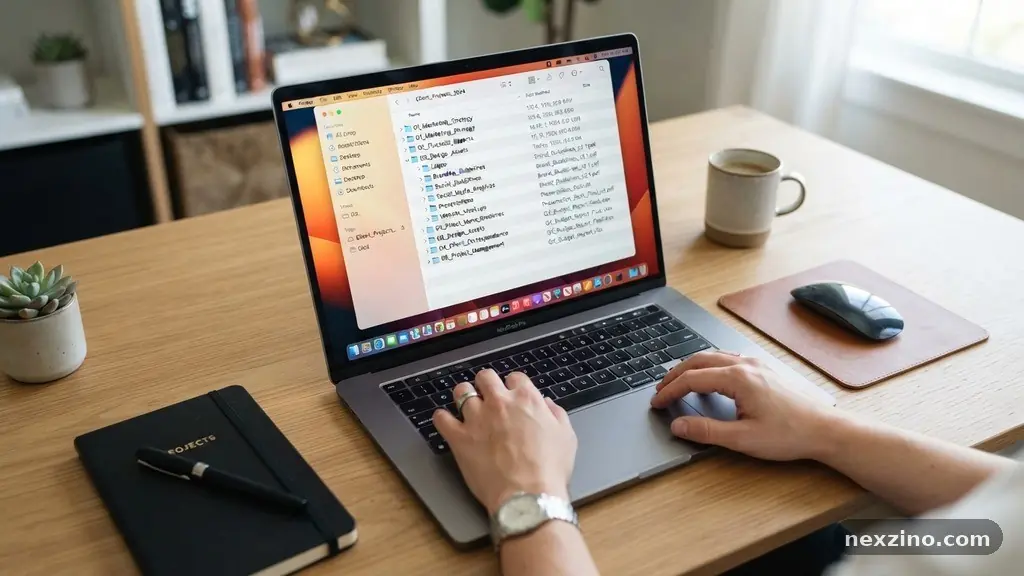
Mastering the art of keeping digital documents organized for faster access transforms a chaotic desktop into a streamlined workspace. When you know exactly where every file resides, you reduce cognitive load and reclaim hours previously spent hunting for misplaced data.
This process relies on consistent habits rather than complex software suites, making it an achievable goal for anyone handling information. By implementing a few structural changes to your storage, you will quickly find that retrieval becomes nearly instantaneous.
Establishing a Logical Folder Hierarchy
The foundation of any efficient system is a clear, predictable folder hierarchy that mirrors your actual workflow. Avoid creating too many top-level folders, as this forces you to scan through an endless list every time you open your file manager.
Instead, start with broad categories like “Projects,” “Financial,” “Personal,” and “Archive.” From there, drill down into subfolders that represent specific clients, years, or document types.
A consistent structure ensures that you never have to guess where a new document belongs. If you store a tax receipt for 2024, it should always go into the same subfolder path across your devices.
Use descriptive, unambiguous names for these folders so that even a colleague or family member could find a document without asking for guidance. This top-down approach prevents the “miscellaneous” folder trap, which often becomes a graveyard for important files.
When designing your hierarchy, consider how you naturally think about your tasks. Some people prefer organizing by project timeline, while others prefer organizing by document format or department.
Whichever method you choose, apply it strictly to avoid fragmentation. A well-maintained structure minimizes the need for deep searching, as the path to your document becomes intuitive over time.
Implementing Standardized File Naming Conventions
Once your folders are set, you must adopt strict file naming conventions to stop the cycle of searching for “Document1_final_v2_updated.pdf.” A robust naming schema typically includes a date, a descriptive project title, and a version identifier.
For instance, using the format YYYY-MM-DD_ProjectName_Description_V01 allows your computer to sort files chronologically and alphabetically with perfect precision. This simple change allows you to identify the contents of a file without even opening it.
Avoid using vague labels like “meeting notes” or “invoice” without adding specific context. Instead, include the client name, the specific date of the meeting, or the invoice number directly in the filename.
By embedding this metadata into the name itself, you take advantage of your operating system’s built-in search indexing features. When you search for a specific term, your computer will return the most relevant results at the top because the information is right there in the title.
Consistency is the most important element of any naming system. If you decide to use underscores as separators, do not switch to dashes or spaces halfway through a project.
These small variations can break automated sorting scripts and make it harder for your brain to scan lists quickly. Stick to a simple, repeatable format that serves your specific needs and keeps your file list clean and readable.
Leveraging Search Indexing and Metadata
Modern operating systems are incredibly powerful when it comes to search indexing, but they only work well if you provide them with enough information. Beyond just naming files correctly, you can utilize metadata tagging to categorize documents that belong to multiple projects.
For example, a single document might be tagged as “Tax,” “2024,” and “Medical.” This allows you to pull up all documents related to a specific category, even if they live in different folders.
Optical character recognition (OCR) is another tool that significantly improves your ability to find text within scanned documents. Most modern cloud storage platforms automatically perform OCR on uploaded PDFs and images, making the text inside them searchable.
This means you can find a specific receipt by searching for a keyword printed on the paper, such as a vendor name or a specific dollar amount. If your scanner doesn’t include this, consider using a tool that converts images to searchable PDFs.
To ensure your search results are always accurate, perform regular maintenance on your index settings. Sometimes, an operating system’s search database becomes corrupted or outdated, leading to missing files or slow performance.
Rebuilding the index occasionally ensures that your computer is aware of every new file you add to your drives. When you combine smart naming with these built-in search features, you effectively turn your computer into a personal librarian.
Managing Document Lifecycle and Version Control
Many users struggle with clutter because they keep every iteration of a document indefinitely. A solid document lifecycle management strategy involves moving older, completed projects into an “Archive” folder or moving them off your primary drive entirely.
By separating active work from historical records, you keep your current folders lean and fast. This practice ensures that you are only interacting with the files that are relevant to your current daily tasks.
Version control is equally vital for avoiding confusion when working on collaborative or iterative projects. Instead of saving files as “Final,” “Final_v2,” and “Really_Final,” use a simple numerical system like “V01,” “V02,” and so on.
If you are working in a team environment, consider using cloud-based platforms that automatically handle version history for you. This prevents the accidental overwriting of data and gives you a clear audit trail of changes.
When a project reaches its conclusion, perform a quick audit to delete redundant drafts and temporary files. Keeping only the final versions saves space and reduces the noise when you are searching for specific information.
If you are unsure about deleting a file, move it to a dedicated “Review” folder and set a calendar reminder to check it again in six months. If you haven’t touched it by then, it is usually safe to archive or delete.
Comparing Cloud Storage and Local Sync
Choosing the right storage environment is critical for accessibility across multiple devices. Cloud synchronization services provide the benefit of having your files available on your laptop, phone, and tablet simultaneously.
This ensures that you aren’t tethered to a single machine when you need to access a specific document. However, you must carefully manage your cloud synchronization services to avoid storage bloat or security risks.
The following table highlights the differences between common storage methods for managing your digital footprint:
| Storage Type | Primary Benefit | Best Use Case |
|---|---|---|
| Local Drive | Maximum speed and privacy | Large media files and sensitive data |
| Cloud Storage | Access from any device | Active projects and shared documents |
| External Backup | Full data recovery | Long-term archival of critical records |
| NAS Device | Centralized home control | Collaborative family or office access |
Regardless of where you store your files, ensure you have a plan for backup redundancy. Hardware failure is a reality, and relying on a single folder on your desktop is a recipe for data loss.
Use the “3-2-1” rule: keep three copies of your data, on two different types of media, with one copy stored off-site. Cloud platforms often satisfy the off-site requirement, but having a physical local backup is always recommended for true peace of mind.
Optimizing File Sizes and Formats
Large, bloated files can slow down your system and make file synchronization take much longer than necessary. Whenever possible, use efficient file formats that balance quality with file size, such as the Portable Document Format (PDF) for text-heavy files.
If you are storing high-resolution images or videos, consider using file compression tools to shrink their footprint without losing critical detail. Keeping your files small makes your entire storage environment more responsive.
Standardizing your formats also ensures long-term compatibility with future software updates. If you save documents in proprietary formats that require obscure software, you risk losing access to that data down the road.
Sticking to industry-standard formats like .pdf, .docx, .xlsx, and .png ensures that your files will remain readable for years to come. This is a key part of digital asset management that many users overlook until they try to open an old file.
Think of your digital storage as a physical filing cabinet that has limited space. By compressing what you don’t need to access frequently and standardizing the formats of what you do, you keep the “drawers” from jamming.
Regularly check your storage usage to see if any specific folders have grown disproportionately. This proactive approach keeps your system performing at its peak and ensures that finding your documents remains a quick, frictionless experience.
Developing Sustainable Digital Habits
The most sophisticated system in the world will fail if you do not maintain it with daily habits. Spend five minutes at the end of each day clearing your “Downloads” folder and moving files into their permanent homes.
This simple act prevents the accumulation of temporary files that clutter your desktop and confuse your search results. If you leave files in your “Downloads” folder, you are essentially creating a second, unorganized file system that competes with your primary one.
Create a “Pending” or “Inbox” folder for files that you haven’t had time to categorize yet. This gives you a safe place to put new downloads without cluttering your main structure.
However, treat this folder like a physical inbox; it must be emptied regularly. If you find that you are constantly moving files from your inbox to a “Miscellaneous” folder, it is time to rethink your main folder hierarchy.
Finally, remember that keeping digital documents organized for faster access is a journey, not a destination. You will inevitably find new ways to improve your system as your work evolves. Don’t be afraid to restructure your folders if you find that your current setup is no longer serving your needs.
For further reading on managing your digital life, you can explore the resources provided by the Library of Congress digital preservation guidelines. Stay patient with yourself, and enjoy the clarity that comes with a well-managed digital space.
Frequently Asked Questions
How often should I clean up my digital files?
A weekly review is usually sufficient for most people. Spend ten minutes every Friday afternoon clearing your desktop and downloads folder to ensure you start the next week with a clean slate.
Is it better to use one large folder or many small ones?
It is generally better to use a balanced hierarchy of folders. Too many folders create “click fatigue,” while one massive folder makes it impossible to find anything without a search tool. Aim for a depth of three to four levels maximum.
What should I do if I have thousands of old, unorganized files?
Do not try to organize them all at once. Create an “Archive” folder, move everything into it, and only pull items out into your new system as you need them. This prevents you from spending weeks on a project that doesn’t provide immediate value.
How do I handle files that fit into two different categories?
Choose the most logical primary location for the file, and then use a shortcut or alias if you truly need to access it from two different places. Alternatively, use metadata tagging if your operating system supports it, as this allows one file to exist in multiple virtual categories without duplicating the actual data.
Does file compression actually make my computer faster?
Compressing files saves disk space, but it also reduces the amount of data your computer needs to read and write during synchronization or search indexing. While it won’t make your processor faster, it can significantly improve the performance of your storage system when dealing with thousands of small documents.
Conclusion
Organizing your digital life is one of the most effective ways to boost your daily productivity. By establishing a clear folder hierarchy and sticking to consistent naming conventions, you remove the friction that often prevents you from getting straight to work.
Remember that the goal is to make your files work for you, not the other way around. Start by cleaning up your most-used folders today, and you will quickly notice how much easier it is to locate what you need.
Keeping digital documents organized for faster access is a habit that pays dividends in both time and reduced stress. As you refine your process, you will find that you spend less time searching and more time focusing on the tasks that truly matter. Embrace these simple organizational techniques, and enjoy the efficiency of a tidy, well-structured digital environment.