Deciding whether to click that “update” button can often feel like a gamble between gaining new features and risking your system’s stability. While manufacturers frame every release as essential, checking whether a software update is worth installing requires a more nuanced approach than simply trusting an automated notification. You need to balance the promise of new functionality against the potential for bugs, compatibility issues, or even performance degradation on older hardware.
This process involves evaluating your specific needs, your risk tolerance, and the actual technical changes provided by the developer. By focusing on security, stability, and utility, you can make informed decisions that keep your devices running smoothly without unnecessary disruption.
Identifying the Primary Purpose of the Update
The most important step in checking whether a software update is worth installing is determining why it exists. Most updates fall into one of three categories: security patches, feature additions, or bug fixes.
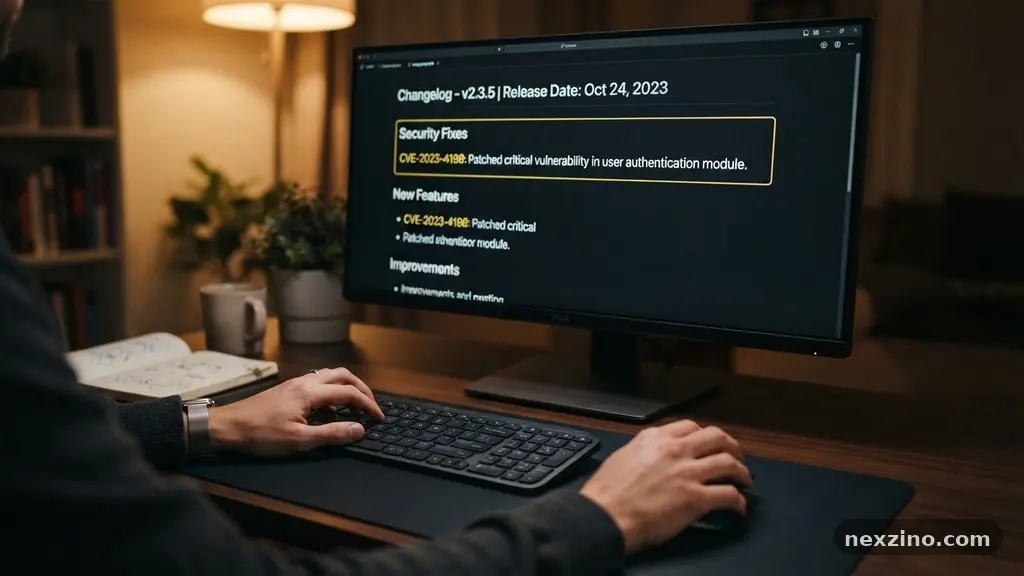
If the release notes mention critical security vulnerabilities or zero-day exploits, the update is almost always worth installing immediately. These patches are designed to close holes that attackers use to gain unauthorized access to your personal data. You can usually verify the severity of these threats by checking the CVE database, which tracks known security flaws across various software platforms.
Feature-heavy updates are a different story and often require a more cautious approach. While a new interface or added tool might sound exciting, these changes can sometimes introduce instability or unexpected behavior in workflows you rely on daily. If the update is a major version jump, such as moving from version 12.0 to 13.0, it is often wise to wait a few weeks.
Early adopters frequently uncover issues that developers address in subsequent minor patches. By waiting, you allow the initial surge of bug reports to be resolved, ensuring a more polished experience when you finally commit.
Decoding the Changelog and Patch Notes
Reading the documentation provided by the developer is the best way to understand what is actually changing under the hood. A detailed changelog or set of patch notes will explicitly list the fixes and modifications included in the release.
If you see terms like “performance improvements” or “stability fixes,” these are generally safe and beneficial to install. However, be wary of language that mentions “feature deprecation,” as this indicates that certain tools or workflows you currently use might be removed or altered significantly. Understanding the scope of these changes helps you anticipate any necessary adjustments to your personal or professional routine.
When reviewing these notes, look for specific mentions of your hardware or operating system version. Developers often include compatibility notes that clarify which devices are officially supported. If your hardware is near the end of its supported life, a major update might inadvertently slow down your device by adding features it wasn’t designed to handle.
Checking these details prevents the frustration of installing an update that makes your system feel sluggish. It is also an excellent time to look for mentions of “regression testing,” which suggests the company has verified that the update does not break existing, previously working features.
Analyzing Security Risks and Vulnerabilities
Security should always be your primary driver when you are checking whether a software update is worth installing. Hackers constantly scan for unpatched software, and failing to update leaves your system open to known exploits.
If a company labels an update as “critical” or “urgent,” prioritize that installation above all else. These updates often fix flaws that allow remote code execution, which is a significant threat to your digital security. Ignoring these warnings creates a window of opportunity for malicious actors to compromise your device or exfiltrate your private information.
It is helpful to distinguish between consumer-facing feature updates and deep-system security patches. Firmware updates, for instance, are often critical because they interact directly with your device’s hardware components. Firmware flaws are difficult to patch once they are exploited, making them high-priority targets for security researchers and attackers alike.
If you are unsure about the nature of an update, perform a quick search for the version number and the word “security” or “vulnerability.” Often, tech news outlets will report on whether a specific update is a “must-install” or if it is safe to skip for a while.
Evaluating System Compatibility and Hardware Age
Older hardware can struggle with modern software bloat, making the decision to update more complex. When you are checking whether a software update is worth installing on an aging laptop or smartphone, consider the system requirements carefully.
If an update demands significantly more RAM or processor power, your device might suffer from reduced performance. Some updates are designed to optimize older systems, but many are built with the latest hardware in mind. Check user forums or Reddit threads dedicated to your specific device model to see how others with similar hardware experienced the update.
| Update Type | Risk Level | Recommendation |
|---|---|---|
| Security Patch | Low | Install immediately |
| Bug Fix | Low | Install as soon as convenient |
| Feature Update | Medium | Wait 2-4 weeks |
| Major Version Upgrade | High | Wait for initial feedback |
You should also verify if your essential applications are compatible with the new system version. Sometimes an OS update will break older software, especially if that software relies on specific system libraries that the update removes or updates. If you rely on specialized professional software, check the developer’s website for compatibility status before updating your primary operating system.
Keeping a log of your “mission-critical” software helps you quickly identify if an update might cause a workflow disruption. This proactive stance is far better than dealing with broken tools during an important project.
Planning a Proper Rollback Strategy
Before you commit to a major update, always ensure you have a way to revert if things go wrong. A good backup is your best defense against a bad software release.
Use built-in tools like Time Machine on macOS, File History on Windows, or cloud-based backups for your mobile devices to create a snapshot of your system. If an update turns out to be unstable or incompatible, you can restore your system to its previous, working state. This safety net gives you the freedom to test updates without the fear of permanent data loss or system failure.
If you don’t have a backup strategy in place, you should establish one before even considering an update. A simple external hard drive or a dedicated cloud backup service is sufficient for most users. Once your data is safe, you can proceed with the update knowing that you have a recovery path.
This reduces the stress of troubleshooting and allows you to experiment with new features confidently. Remember that a rollback strategy is not just for the update process, but a fundamental part of maintaining a healthy and secure digital environment.
Leveraging Beta Testing and Community Feedback
One of the most effective ways to gauge the stability of a new release is to observe the community response. Many software developers run beta testing programs where users report bugs before the final public release.
Even after the public launch, early adopters often share their experiences on social media and technical forums. If you see widespread complaints about battery drain, crashing, or interface bugs within the first few days, you know to hold off. This collective intelligence is a valuable resource for anyone who wants to avoid the “bleeding edge” of software development.
You don’t need to be a technical expert to benefit from this community feedback. Simply searching for the software name and the version number on a search engine will often reveal if there are major issues. Look for threads on official support forums, as these are often the first places where users report legitimate bugs.
If you notice a high volume of reports regarding a specific feature, you can choose to disable that feature or simply wait for the developer to issue a fix. Engaging with these communities helps you make smarter decisions about your software ecosystem.
Managing Technical Debt and Long-Term Maintenance
System stability is often a matter of managing technical debt, which refers to the long-term cost of choosing an easy, temporary fix over a better, long-term solution. Software updates are essential for paying down this debt, as they clean up outdated code and improve overall system efficiency.
Ignoring updates for too long can lead to a “dependency hell” where your software becomes so old that it can no longer communicate with modern services or hardware. While it is tempting to stick with what works, staying current is necessary for long-term health.
* Check the developer’s support lifecycle for your software.
* Prioritize updates that include security patches over feature updates.
* Clear out unused apps before running a major system update.
* Keep your backup system updated to reflect current data.
* Use a staging environment if you manage multiple devices.
Regularly auditing your installed software ensures that you aren’t carrying unnecessary baggage. If an application hasn’t received an update in years, it might be time to find a modern, actively maintained alternative. Modern software is designed to work in concert with current operating systems, and using abandoned software increases your risk of security breaches.
By being selective about what you keep and diligent about what you update, you maintain a lean, secure, and high-performing digital environment.
Frequently Asked Questions How long should I wait before installing a major operating system update?
It is generally recommended to wait at least two to four weeks for a major OS release. This period allows developers to identify and patch the most significant bugs that early adopters encounter. If your work depends on specific software, wait until that software’s developer officially confirms compatibility.
Why does my device feel slower after an update?
Sometimes an update triggers background processes like file indexing or library optimization that can temporarily consume system resources.
If the slowness persists for more than a few days, it might be a sign that your hardware is struggling with the new software demands. Clearing your cache or performing a clean install can sometimes resolve these performance issues.
Are all security updates truly necessary?
Yes, you should treat all security updates as essential. They are designed to address vulnerabilities that could lead to data theft, identity fraud, or system hijacking.
While some feature updates can be delayed, security patches are the foundation of a safe digital life and should be installed as soon as possible.
Does updating my software fix bugs automatically?
Updates often include bug fixes, but they are not a magic cure-all. If you are experiencing a persistent issue, check the changelog to see if that specific bug is mentioned. If it is not, an update might not solve your problem and could potentially introduce new ones.
What should I do if an update breaks my favorite app?
First, check the app developer’s website to see if an update for that specific application is available.
If the app is no longer supported, you may need to look for an alternative or, if you have a backup, restore your previous system state. In some cases, adjusting the app’s settings or running it in a compatibility mode can also restore functionality.
Conclusion
Making the right choice about your software environment doesn’t have to be a source of anxiety. By prioritizing security, reading the changelog, and maintaining a solid backup strategy, you can confidently navigate the update process.
Remember that checking whether a software update is worth installing is a skill that improves with practice and observation. You don’t need to be an expert to recognize when an update is a necessary security measure or a risky experiment.
Stay informed about the tools you use and pay attention to the experiences of the wider community. When in doubt, it is usually better to wait a few days than to rush into an update that could disrupt your day-to-day productivity.
Take control of your digital maintenance, and you will find that your devices remain reliable, secure, and efficient for years to come. If you have questions about a specific update, feel free to reach out to the developer’s support channels or join a community forum to see what others are saying.