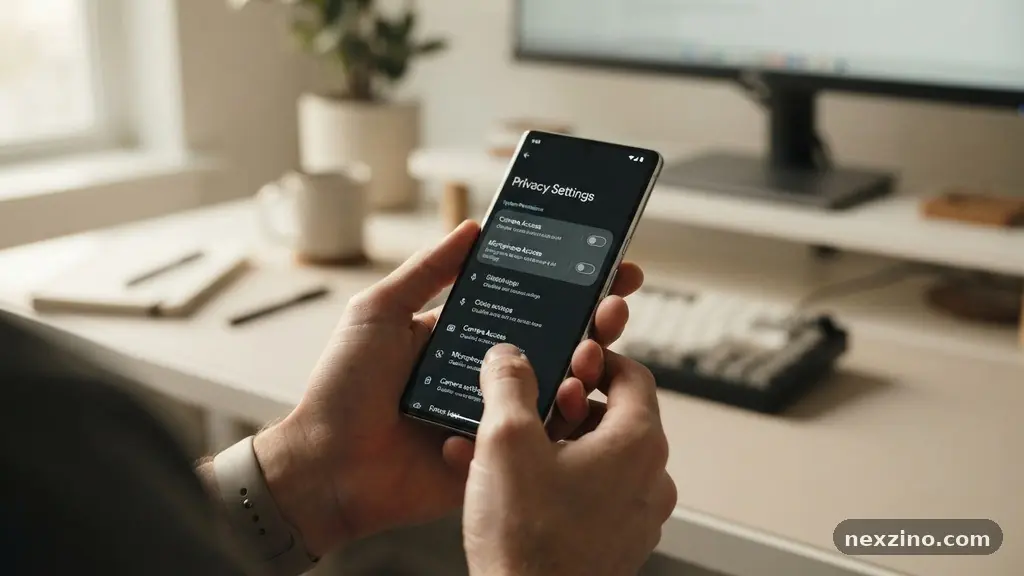
Understanding how to control what your software can access is a vital part of maintaining your digital footprint. By following a Practical Guide to Managing App Permissions on Your Devices, you can ensure that your personal information stays private while still enjoying the functionality you need. Every app you install acts as a doorway into your data, whether that involves your physical location, your contact list, or your microphone.
Taking a few minutes to configure these settings prevents unnecessary tracking and keeps your sensitive information secure. This approach empowers you to decide exactly what each program can see and do on your phone or tablet.
The Immediate Impact of Permission Control
When you grant an app access to your device, you are essentially signing a contract that allows it to use your hardware in specific ways. If you are wondering how to reclaim your digital space, the answer is simple: use your phone’s built-in settings menu to audit every application. You should prioritize checking apps that request access to your camera, microphone, and location.
These three sensors are the most common vectors for unintended data collection. By revoking permissions for apps that do not strictly require them, you minimize your risk of accidental data exposure.
Most modern mobile operating systems provide a centralized hub for this task. On Android, you will find this under the Privacy or Apps section, often labeled as the Android Permission Manager. Apple users should look for the iOS Privacy Dashboard, which provides a visual representation of how often apps are pinging your location or accessing your photos.
Checking these tools once a month is a habit that significantly improves your device security. You will likely find several apps that have been collecting data in the background without any real justification.
Managing Location Services Effectively
Location services are among the most sensitive permissions you can grant. Many apps request constant access to your GPS coordinates, even when you aren’t actively using their features. This data is highly valuable to third-party marketers and can reveal your home address, workplace, and daily routines.
You should change these settings to “While Using the App” whenever possible. This setting ensures that the app can only track you when you have it open on your screen.
Some applications may argue that they need location data for background features, such as weather updates or local alerts. You must decide if those features are worth the trade-off in privacy. If a flashlight app or a calculator requests your location, you should deny it immediately.
There is no legitimate reason for those tools to know where you are. Use the following list to determine which apps deserve your trust when it comes to location tracking:
- Navigation and maps (Google Maps, Waze) – Essential
- Ride-sharing services (Uber, Lyft) – Necessary for pickup
- Weather apps – Useful for localized forecasts
- Social media – Optional; consider disabling for better privacy
- Retail apps – Usually unnecessary; turn off to prevent tracking
Controlling Microphone and Camera Access
Your microphone and camera represent the most intimate parts of your digital life. Allowing an app to access these can lead to privacy breaches if the app is poorly designed or malicious. Modern operating systems now include visual indicators, such as a green or orange dot, to alert you when your camera or microphone is active.
If you see these indicators when you aren’t using a specific app, you should investigate your permissions immediately. The best practice is to deny these permissions to all but the most trusted communication or photography apps.
If you are concerned about unauthorized access, you can visit the Federal Trade Commission’s guide on protecting personal information to understand the risks of data over-collection. Never grant “Always Allow” to a microphone permission. If an app needs to record audio, it should only do so while you are actively using its recording feature.
If you find an app that refuses to function without camera or microphone access despite having no clear need for them, consider deleting it. There are often alternative apps that respect your privacy more effectively.
Understanding Background Data Access
Many apps continue to run processes even after you have closed them. These background activities can drain your battery, consume your mobile data, and quietly collect information about your habits. Managing background data access is a key component of maintaining a secure and efficient device.
You can restrict this behavior in your device settings by toggling off “Background App Refresh” for non-essential software. This prevents apps from “phoning home” while they are sitting idle in your app switcher.
Restricting background access also helps improve your phone’s performance. When fewer processes are competing for CPU and memory, your battery life will naturally extend. Focus on blocking background activity for social media apps and games that frequently send push notifications.
These apps are the most common offenders for excessive background resource usage. By limiting their ability to run in the background, you regain control over your device’s energy consumption and data usage.
Comparing Privacy Settings Across Platforms
The way you manage permissions varies slightly depending on whether you are using Android or iOS. Both platforms have made significant strides in recent years to offer more granular control to users.
However, their approaches to transparency differ. The table below outlines the primary differences in how these operating systems handle your requests for privacy.
| Feature | Android (Permission Manager) | iOS (Privacy Dashboard) |
|---|---|---|
| System Transparency | Requires manual check of app list | Provides a 7-day summary of access |
| Tracking Prevention | Opt-out of ad ID tracking | App Tracking Transparency (Opt-in) |
| Permission Revoking | Auto-reset for unused apps | Manual or auto-reset options |
| Background Access | Controlled via battery settings | Controlled via refresh settings |
Each system allows you to revoke access at any time. Do not assume that because you granted a permission once, it must stay that way forever. Both operating systems now include “Auto-reset” features that automatically turn off permissions for apps you haven’t opened in several months.
This is a powerful tool for cleaning up old permissions you may have forgotten about. If you haven’t enabled this feature, look for it in your settings menu under the privacy or security tab.
Addressing Push Notifications and Tracking
Push notifications are often used to lure you back into an app, but they can also be a form of surveillance. Many apps use notification tokens to track your engagement levels across different devices. If you find yourself bombarded with alerts, use this as a sign to audit your notification permissions.
Go to your settings and disable alerts for any app that doesn’t provide real value to your day. This simple step reduces digital noise and limits the amount of metadata being generated.
App tracking transparency is another critical area, especially for those using Apple devices. When an app asks for permission to track you across other companies’ apps and websites, you should almost always say “Ask App Not to Track.” This prevents the developer from building a profile of your browsing habits outside of their own ecosystem.
On Android, you can achieve similar results by resetting your advertising ID and opting out of personalized ads. Protecting your data identity is a continuous process that requires vigilance and regular maintenance.
FAQ: Common Questions on Device Permissions
How do I know if an app is spying on me?
Modern phones use indicators like a green or orange dot at the top of your screen to show when your microphone or camera is being used. If you see these lights when you aren’t using an app, check your permission settings to see which apps have access to these sensors. You can also review your privacy dashboard to see a log of which apps have accessed your data recently.
Is it safe to deny all permissions to an app?
Denying all permissions is safe, but it may cause the app to stop working correctly. For example, a map app cannot guide you if it doesn’t have access to your location. Start by denying permissions that seem unnecessary, such as a calculator asking for your contact list, and only enable permissions as the app needs them.
What happens if I revoke a permission by mistake?
Nothing bad will happen; the app will simply stop accessing that specific resource. If you find that a feature you need is broken, you can simply go back into your settings and toggle the permission back on. You have full control, and you can change these settings as many times as you like.
Do I need to worry about system apps?
System apps are essential for the basic operation of your phone and usually require certain permissions to function. While you can sometimes restrict them, it is generally best to leave system-level permissions alone to ensure your phone remains stable. Focus your efforts on the third-party apps you have downloaded from the app store.
How often should I review my app permissions?
It is a good idea to perform a quick audit of your permissions every three to six months. Whenever you download a new app, take a second to review its settings immediately. This keeps your device clean and ensures that you aren’t leaving doors open to your personal data unnecessarily.
Managing your digital security does not require a degree in computer science. By following a Practical Guide to Managing App Permissions on Your Devices, you can take charge of your personal data and significantly enhance your privacy. Start by opening your settings menu today and reviewing the list of applications that have access to your location, microphone, and camera.
Revoking permissions for apps you rarely use is a simple, effective step toward a safer digital experience. Remember that you are the owner of your data, and you have the right to decide who gets to see it. Take the time to audit your devices regularly, and you will enjoy a much more secure and peaceful relationship with your technology.