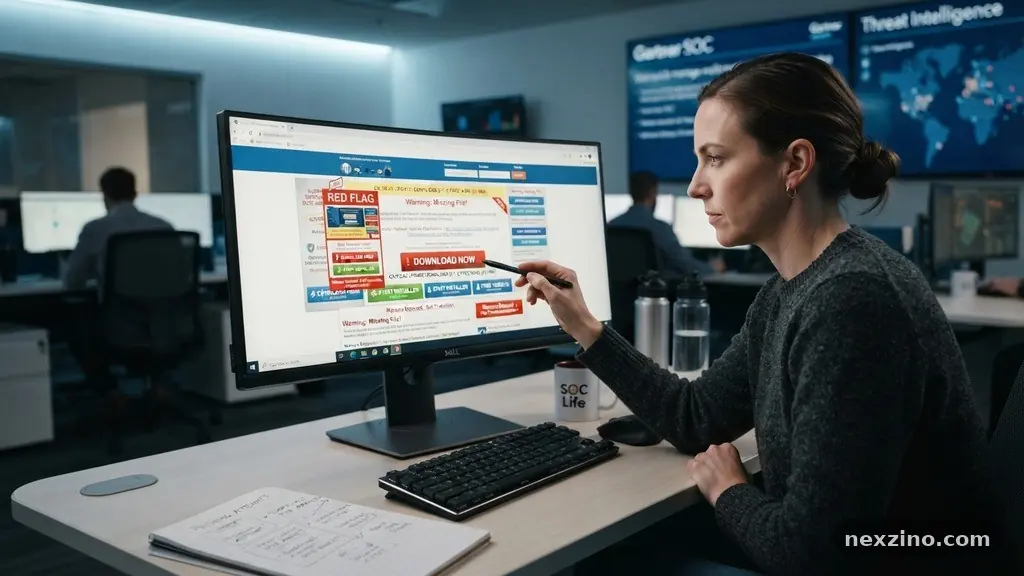
Learning the art of recognizing Fake Software Download Websites Before Installing Anything is your first line of defense against digital threats. Every year, thousands of unsuspecting users fall victim to malicious actors who disguise dangerous software as legitimate tools. By understanding the subtle warning signs of a compromised site, you can prevent malware from infiltrating your personal computer.
This article provides the practical knowledge necessary to evaluate the safety of any download portal before you click that button. You will gain the confidence to identify red flags, verify digital signatures, and ensure your system remains secure from potential intruders who thrive on common user trust.
Analyzing Visual and Structural Red Flags
The first step in recognizing Fake Software Download Websites Before Installing Anything involves a critical assessment of the page design. Malicious sites often mimic the branding of well-known software developers to deceive visitors. Look closely at the color scheme, logo resolution, and the general layout of the page.
If the site feels “off” or contains low-quality, pixelated images of official logos, you are likely looking at a copycat site. Legitimate developers invest heavily in professional web design, and they rarely suffer from broken links or inconsistent typography.
Another telltale sign is the presence of aggressive, misleading advertisements. These sites often feature giant “Download” buttons that are actually advertisements for unrelated products or browser extensions. If you see multiple buttons on a page, hover your cursor over them to inspect the destination URL in the bottom corner of your browser.
Authentic download pages usually keep their call-to-action buttons clean and clearly separated from banner ads. If the site bombards you with pop-ups claiming your system is infected, close the tab immediately.
Domain spoofing is a common tactic where scammers use a URL that looks nearly identical to a trusted source. They might replace a letter with a similar-looking character or add extra terms to the domain name. Always double-check the URL in your browser’s address bar before initiating any file transfer.
If you are searching for a specific program, it is safer to navigate to the developer’s official site through a search engine rather than clicking on sponsored links. Sponsored results are often purchased by malicious actors looking to hijack traffic for popular search terms.
The Danger of Software Bundling and Installers
Many fake portals use a tactic called software bundling to distribute unwanted programs. When you download what you think is a simple utility, the installer might actually be a custom wrapper that includes additional, hidden software.
These wrappers are designed to bypass basic security checks while installing browser toolbars, adware, or even a trojan horse. You can often spot these by the file size; if a small utility is suddenly hundreds of megabytes, it likely contains unnecessary bundled components.
Always opt for “Custom” or “Advanced” installation settings if you are forced to use an installer. This step often reveals the pre-checked boxes that grant permission to install third-party applications you never requested.
If an installer asks for administrator privileges immediately upon opening, be extremely cautious. Legitimate software typically only requires these permissions during the actual installation phase, not while simply running a downloader or an extraction tool.
Pay close attention to the file name and extension after the download completes. An executable file should have a clear, recognizable name related to the software you intended to get. If the file is named something generic like “setup.exe” or a string of random characters, it is a significant red flag.
Never run an executable file that you did not explicitly expect to receive. When in doubt, delete the file and seek the software from the original creator’s website or an established, verified repository.
Verifying Digital Signatures and Authenticity
Checking for a valid digital signature is one of the most reliable ways to confirm you are dealing with a legitimate vendor website. A digital signature acts as a tamper-proof seal that confirms the software originated from a specific, verified developer.
When you right-click a downloaded file in Windows and select “Properties,” look for a tab labeled “Digital Signatures.” If this tab is missing or indicates the signature is invalid or from an unknown publisher, the file is highly suspect.
Public key infrastructure allows these certificates to prove that the code has not been altered since it was signed. If you see a warning that the certificate has expired or is self-signed, avoid running the file at all costs.
Attackers often use self-signed certificates to make their malicious payloads look professional, but they cannot replicate the trusted authority status of legitimate companies. This technical verification is a powerful tool for anyone serious about cybersecurity.
For added peace of mind, you can use online tools to scan files before opening them. Services like VirusTotal allow you to upload a file or paste a link to check it against dozens of different antivirus engines. This service aggregates results from the industry’s top security firms to identify potential threats.
If even one or two engines flag the file, it is best to treat it as a threat. Relying on community-driven reputation data provides a layer of security that human intuition alone cannot match.
Comparing Common Indicators of Malicious Sites
To make quick decisions, it helps to keep a mental or physical checklist of what separates a safe site from a dangerous one. The following table highlights the differences between a legitimate download source and a suspicious portal. Use this as a reference whenever you are unsure about a site’s credibility.
| Feature | Legitimate Website | Suspicious Website |
|---|---|---|
| URL Structure | Matches the official company name | Includes random letters or misspellings |
| Download Button | Clearly labeled, minimal surrounding ads | Multiple buttons, flashing, or confusing |
| File Metadata | Includes valid digital signature | Missing or unsigned executable files |
| File Size | Consistent with the software type | Suspiciously large due to bundled bloat |
Identifying Social Engineering Tactics
Social engineering is the cornerstone of how these sites trick users into ignoring their instincts. They often create a sense of urgency, claiming you must download a “critical update” or a “necessary driver” immediately to prevent system failure.
This fear-based tactic is designed to make you bypass your logical assessment of the site. Remember that no legitimate software company will ever use aggressive pop-ups or countdown timers to force a download.
These sites also rely heavily on fake user reviews and testimonials to build false credibility. A page filled with generic, overly positive comments should be treated with skepticism.
If every review mentions how “easy” or “safe” the download was, it is likely a scripted attempt to lower your guard. Real software forums often have nuanced discussions about bugs, features, and troubleshooting, rather than just blanket praise.
Be wary of sites that require you to disable your antivirus or firewall to complete a download. A legitimate vendor will never ask you to compromise your security settings to access their files.
If a site provides instructions on how to bypass Windows Defender or other security software, it is a clear sign that the file is malicious. Always keep your security software active, as it is designed to detect and block the very threats these sites attempt to push onto your device.
Recognizing Browser Extension Risks
Many fake download portals try to trick you into installing malicious browser extensions under the guise of “download managers” or “search helpers.” These extensions can monitor your web traffic, inject ads into your search results, and steal sensitive information like login credentials.
Once installed, they are often difficult to remove because they bury themselves deep within your browser’s settings. Never install a browser extension from a site that isn’t a recognized marketplace like the Chrome Web Store or Firefox Add-ons.
If you notice your browser’s homepage or default search engine has suddenly changed, a malicious extension is likely to blame. These changes are classic symptoms of browser hijacking, often initiated by drive-by downloads or deceptive installers.
Regularly audit your installed extensions to ensure you recognize every single one. If you find something you don’t remember installing, remove it immediately and perform a full system scan with your preferred security software.
It is also important to watch out for “sponsored” search results that lead to these fake sites. When you search for popular software, the first few results are often ads that look like organic links.
These links can redirect you to a malicious page that mimics the official site perfectly. Always look for the “Ad” or “Sponsored” tag next to search results, and try to click on the organic, non-paid link below them to ensure you reach the correct destination.
FAQ: Staying Safe Online
How can I tell if a software site is official?
Check the domain name carefully to ensure it matches the developer’s known website. You can often find the official link by searching for the software name and looking for the verified social media profiles or the Wikipedia entry for the company, which usually lists their official URL.
What should I do if I accidentally run a suspicious file?
Disconnect your computer from the internet immediately to prevent the malware from communicating with its command-and-control server. Run a deep scan with a reputable antivirus program and consider disconnecting any external drives or cloud storage to prevent the spread of the infection.
Are free software download repositories always dangerous?
Not all of them are malicious, but they are significantly riskier than official sources. Many repositories use revenue-sharing models that encourage bundling third-party software, which increases the likelihood of unwanted programs being installed on your system.
Why do antivirus programs sometimes flag safe software?
This is known as a “false positive” and can happen if the software uses code obfuscation or behavior that mimics malware. If you are certain the software is safe, check the developer’s official forums to see if others are experiencing the same issue, but always err on the side of caution.
Can I trust a site if it has an HTTPS lock icon?
The lock icon only means the connection is encrypted, not that the site is safe. Many phishing and malicious websites now use free SSL certificates to display that lock icon, so it is not a guarantee of legitimacy or security.
Conclusion
Protecting your digital environment requires constant vigilance and a healthy dose of skepticism. By mastering the methods for recognizing Fake Software Download Websites Before Installing Anything, you significantly reduce the risk of falling for phishing scams or downloading harmful payloads. Always prioritize official sources, verify file signatures, and keep your security software up to date.
These simple steps build a strong defense that protects your personal data from evolving threats. If you ever feel uncertain about a site, trust your gut and walk away. Staying informed is the best way to maintain a clean and functioning system, so continue to scrutinize your downloads and share these security practices with others.