Finding simple ways to improve your computer’s startup performance often starts with identifying exactly what is loading the moment you press the power button. Many users experience sluggish boot times because their operating system is forced to juggle dozens of background processes before the desktop even appears.
By taking control of which applications launch automatically, you can reclaim minutes of your day and ensure your hardware runs at peak efficiency. This approach focuses on clearing out unnecessary digital clutter, optimizing system settings, and ensuring your machine is not bogged down by outdated software or hidden background tasks.
Identifying Startup Programs and Their Impact
The most effective way to address slow boot times is to investigate the software that automatically launches when your computer starts. Every application added to your system often requests permission to run in the background, which consumes vital system resources like RAM and processing power.
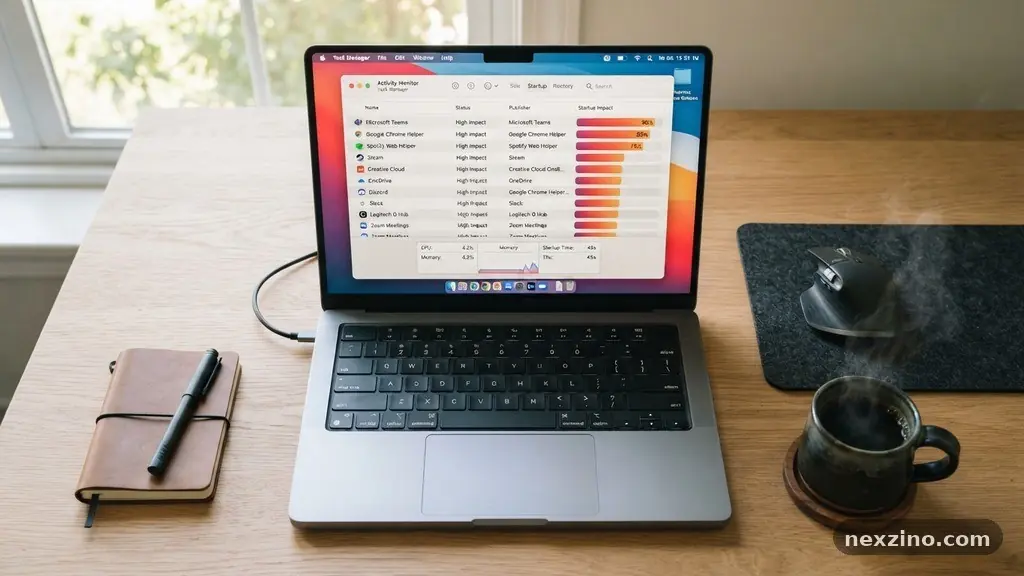
You can view these items directly through the Windows Task Manager by pressing Ctrl + Shift + Esc. Navigate to the “Startup” tab to see a list of every program configured to launch at login.
Each item in this list carries an “Impact” rating, which ranges from high to low. Focus your efforts on the high-impact entries, as these are the primary culprits behind a sluggish boot process.
Common offenders include cloud storage sync clients, messaging platforms, and peripheral device management software that you might not need every time you use your computer. Simply right-clicking an unnecessary item and selecting “Disable” will prevent it from launching automatically without deleting the actual application.
Optimizing Background Processes
Beyond the visible startup items, there are numerous hidden background processes that can significantly drag down performance. These services often perform updates, check for new content, or sync data in the background while you are trying to reach your desktop.
You can manage these by opening the “Services” window via the Run command, typing “services.msc,” and reviewing the list of active tasks. Exercise caution here, as disabling essential system services can lead to instability or hardware communication failures.
Focus specifically on services linked to third-party software you have installed over the years. If you no longer use a particular printer suite or a specialized tool, the associated background services are likely still running.
You can change their startup type from “Automatic” to “Manual” to ensure they only run when you explicitly open the program. This creates a much lighter load for your processor during the initial boot sequence.
Transitioning to Solid-State Storage
If your computer is still using a traditional mechanical hard drive, no amount of software optimization will provide the same boost as upgrading to a solid-state drive (SSD). Traditional spinning drives rely on moving parts to read data, which creates a physical bottleneck during the boot process.
An SSD uses flash memory to access files nearly instantaneously, often cutting boot times from over a minute to just a few seconds. This is widely considered the most impactful hardware change you can make for overall system responsiveness.
The difference in performance is measurable and drastic, even on older machines that are several years old. When you move your operating system to an SSD, the time it takes for the system to load critical drivers and system files drops significantly.
For more details on how hardware components influence system speed, you can review the Intel technical guide on storage performance. Investing in this upgrade is a permanent solution that fundamentally changes how your computer interacts with your data.
Removing Unnecessary Bloatware
Many computers come pre-installed with software from the manufacturer that you may never actually use. This bloatware often includes trial versions of security suites, custom media players, and proprietary management tools that add unnecessary strain to your system.
These programs are notorious for adding themselves to your startup list and running persistent background processes that serve little purpose for the average user. Systematically uninstalling these applications through the “Apps & Features” menu is a quick win for your startup speed.
If a program is not essential for your daily workflow, remove it entirely rather than just disabling it. This frees up disk space and ensures that hidden tasks or update checkers associated with the software are permanently silenced.
Be particularly wary of “optimizer” or “cleaner” tools that claim to speed up your PC; these often consume more resources than they save. A clean operating system environment is always faster than one crowded with redundant utility software.
Comparing Startup Configurations
Understanding the impact of different startup items helps you prioritize what to keep and what to cut. The table below outlines how various types of software typically affect the boot experience when left to run automatically.
| Software Category | Typical Startup Impact | Recommended Action |
|---|---|---|
| Cloud Sync Tools | High | Disable if not needed immediately |
| Messaging Apps | Medium/High | Disable; open manually as required |
| Security Suites | High | Keep enabled for protection |
| Printer/Scanner Drivers | Low | Keep enabled for hardware support |
| Update Checkers | Medium | Disable; check for updates manually |
Managing Device Drivers and Updates
Outdated or corrupted device drivers can cause significant delays during the startup sequence. When Windows attempts to initialize hardware components like your graphics card, network adapter, or sound controller, it relies on specific driver files.
If these are buggy or conflicting, the system may hang or take longer to resolve hardware handshakes during the boot phase. Keeping your drivers updated is a proactive way to avoid these initialization timeouts.
Use the Device Manager to check for any exclamation marks or errors indicating a driver issue. While the Windows Update tool handles many drivers automatically, you may occasionally need to visit the manufacturer’s website for specific components like dedicated GPUs.
Ensure that you are not running multiple, conflicting drivers for the same piece of hardware. A lean, up-to-date driver environment is essential for a fast and stable startup experience.
Utilizing Built-in Power Features
Windows includes specific features designed to expedite the startup process, such as “Fast Startup” and hibernation settings. Fast Startup works by saving the state of the operating system kernel to a file on your disk when you shut down, allowing it to load faster the next time you turn on the machine.
You can verify if this is enabled by visiting your Power Options in the Control Panel. It is generally recommended to keep this feature active unless you are experiencing specific hardware compatibility issues.
Another important consideration is the “startup folder” located within the shell directory of your user profile. Sometimes, shortcuts to applications are placed here manually, which forces them to launch every time you log in.
Checking this folder periodically is a simple way to find hidden shortcuts that might have been added by installers. By managing these built-in features, you can ensure that the operating system is working with you to get you to your desktop as quickly as possible.
Frequently Asked Questions
Does a malware scan improve startup speed?
Running a malware scan does not directly speed up your computer, but it can identify malicious software that might be hogging your system resources. If your PC is slow because of background infections, cleaning them will certainly improve overall performance.
How do I know which startup programs are safe to disable?
Generally, you should avoid disabling anything related to your security software, audio drivers, or chipset drivers. If you are unsure about a specific process, you can right-click it in Task Manager and select “Search online” to see what other users say about that specific file.
Will disabling startup programs prevent them from working?
Disabling a program in the startup list only prevents it from launching automatically when you turn on your computer. You can still open the program manually at any time by clicking its icon on your desktop or in your start menu.
What is the biggest cause of slow startup times?
The most common cause is having too many applications configured to launch at once, combined with the use of older, slower mechanical hard drives. Reducing the number of active startup items is the most immediate way to see a difference.
Should I disable all startup items?
You should not disable everything, as some items are necessary for hardware functionality or system security. Focus on third-party applications and services that you do not need to use the moment you log in to your computer.
Conclusion
Improving your computer’s startup performance is a manageable task that relies on consistent maintenance and smart software management. By regularly reviewing your startup programs, removing unnecessary bloatware, and ensuring your drivers are current, you can significantly reduce the time it takes to reach your desktop. These simple adjustments, combined with potential hardware upgrades like an SSD, will ensure your machine remains responsive and efficient.
Taking these steps provides more than just a faster boot; it creates a cleaner, more reliable environment for your daily computing tasks. Start by checking your Task Manager today and see which applications are truly necessary for your workflow, and you will likely notice a difference the next time you power on your device.