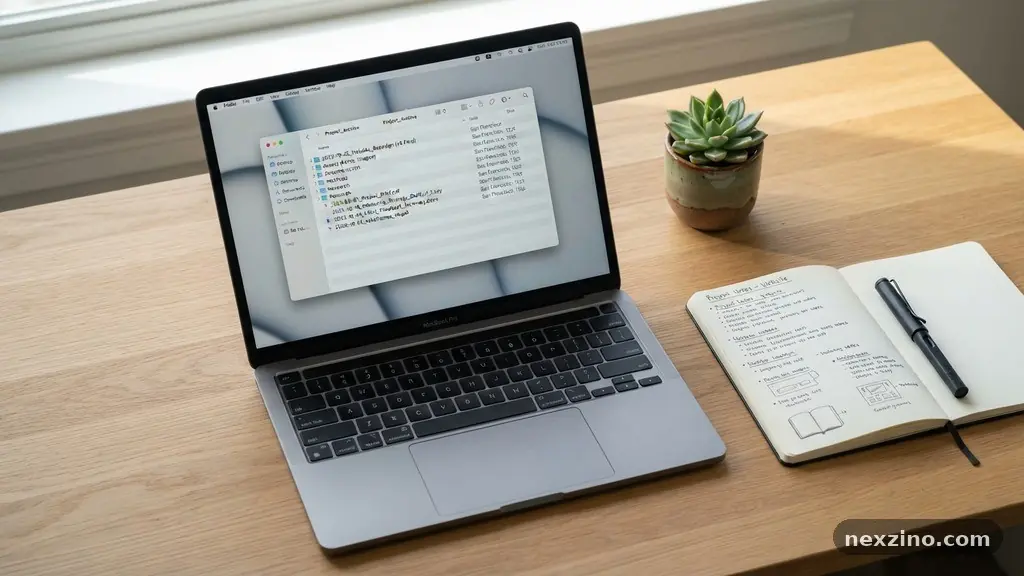
Learning the art of organizing digital files without creating duplicate copies requires a shift from reactive saving to proactive management. Many users find themselves buried under redundant versions of documents and photos simply because they lack a consistent workflow. By establishing a clear directory structure and committing to specific naming habits, you can reclaim your storage space and reduce mental clutter.
This process isn’t about perfection; it’s about creating a sustainable system that prevents the accumulation of unnecessary digital waste. Adopting these techniques will save you hours of searching and ensure your most important data remains accessible and unique.
Foundational Rules for File Naming Conventions
The most effective way to prevent duplicates is to stop them before they are created. Many people save files with generic names like “Report_Final” or “Project_Draft,” which inevitably leads to confusion and subsequent copies.
Instead, adopt a standardized naming convention that includes the date, project name, and a version number. For example, use “YYYY-MM-DD_ProjectName_Description_v01” to keep everything sorted chronologically.
When you use a consistent naming structure, your operating system will often alert you if a file with the exact same name already exists in a destination folder. This immediate feedback loop acts as a primary defense against accidental duplication.
If you find yourself frequently renaming files, it is a sign that your folder hierarchy is not granular enough. Break down your primary folders by year or project category to keep the root directory clean and manageable.
Avoid using vague terms like “final” or “copy” in your file names. If you must iterate on a document, increment the version number rather than creating a new file with a different name.
This strategy keeps your history linear and prevents the “folder sprawl” that often occurs when users lose track of which version is the most current. Consistency here is the most powerful tool in organizing digital files without creating duplicate copies.
Implementing a Logical Directory Structure
Your directory structure should mirror how you actually work rather than how a computer wants you to store data. Start with a top-level organization based on broad categories, such as “Personal,” “Work,” and “Archive.”
Within these categories, create sub-folders that follow a consistent logic, such as by year or by active project. Do not nest folders more than four or five levels deep, as this makes it harder to locate files quickly.
A clear hierarchy allows you to see at a glance where a specific type of file belongs. When you know exactly where a document should live, you are far less likely to save it in multiple locations.
If you find yourself saving a file in “Documents” and again in a “Project” folder, you are creating a redundancy that will haunt you later. Choose one primary location for each file type and stick to it religiously.
Consider using shortcuts or aliases if you need to access a file from multiple projects. Most modern operating systems allow you to create a link to the original file without moving or copying the actual data.
This allows you to keep a file in its “home” folder while still having a pointer to it in your active working folder. This is a vital technique for maintaining a single source of truth for all your digital assets.
The Role of Metadata and Tagging
Metadata tagging provides an additional layer of organization that goes beyond simple folder placement. By adding keywords to your files, you can search for them across different directories without needing to duplicate them for different contexts.
For example, you might tag a document with “Invoice,” “2024,” and “ClientName.” This allows you to find all relevant files regardless of where they are physically stored.
Most operating systems now have built-in support for tagging, and many professional file management systems offer advanced metadata editing. Spending a few seconds to tag a file during the initial save process is much faster than spending hours manually cleaning up folders later.
Think of tags as a multidimensional filing cabinet that doesn’t require extra physical space. It essentially gives you the ability to view your files through different lenses.
If you are dealing with large media libraries, metadata is even more critical. You can use specialized software to embed information directly into the file headers, which ensures the data travels with the file if you move it to another drive or cloud service.
This practice ensures that even if your folder structure changes, your ability to retrieve the file remains intact. It is a proactive way to maintain order in an increasingly complex digital environment.
Strategies for Cloud Storage Synchronization
Cloud storage synchronization is often a major source of accidental duplication if not managed correctly. Many users enable automatic syncing across multiple devices without realizing that conflicting versions or sync errors can create “conflict copies.”
To avoid this, always designate one device as the primary source for editing specific files. If you are working on a document, ensure it is fully synced before opening it on a different device.
Cloud-native storage solutions are designed to handle versioning, which is a great way to avoid creating new files for every edit. Instead of saving “Report_v1,” “Report_v2,” and “Report_v3,” use the “Version History” feature offered by platforms like Google Drive or OneDrive.
This allows you to revert to previous states without cluttering your main file list with older, redundant versions. It is a cleaner, safer way to manage document evolution.
Be cautious with how you connect external hard drives to your cloud-synced folders. If you move a large folder of files from an external drive into a synced cloud folder, the system may attempt to re-upload or duplicate items it already recognizes.
Always check the sync status indicators to ensure your local changes are being reflected in the cloud without triggering unnecessary transfers. Proper synchronization is about trust, but it requires verification.
Comparing File Management Methods
To understand how to keep your library clean, it helps to compare the various approaches to file storage. Different methods have different impacts on your risk of creating duplicates.
| Method | Duplicate Risk | Best For |
|---|---|---|
| Manual Folder Sorting | High | Small, static collections |
| Version Control Systems | Very Low | Collaborative projects |
| Cloud Auto-Sync | Moderate | Cross-device access |
| Metadata Tagging | Low | Large, diverse libraries |
As shown in the table, manual sorting often leads to the highest risk of duplicates because it relies entirely on human memory. Systems that use version control or metadata tagging minimize this risk by automating the tracking process.
When you shift your workflow away from manual folder management toward these more robust systems, you naturally reduce the number of redundant files. This shift is a core component of effective digital hygiene.
Utilizing Deduplication Software Safely
Even with the best intentions, duplicates will eventually creep into your system. When this happens, using deduplication software can be a lifesaver, provided you use it with caution.
These tools scan your drives for files with identical contents—often using file hashing algorithms to verify that files are truly identical, not just similarly named. This is the most reliable way to identify “ghost” copies that have been sitting in your sub-folders for years.
However, never run a deduplication tool without a full backup of your data. Some tools might accidentally delete system files or configuration files that look like duplicates but are actually required by your software.
Always set the tool to “move to a temporary folder” or “flag for review” rather than “auto-delete.” This gives you a safety net to verify the results before permanently removing anything from your drive.
Be particularly careful with photos and videos. Often, you might have the same photo in a “Camera Uploads” folder and a “Vacation” folder. While they are duplicates, you might prefer to keep them in both places for organizational reasons.
Deduplication software is best used for cleaning up your downloads folder or temp directories where redundant files provide no long-term value. Use it as a periodic maintenance tool rather than a daily habit.
Establishing a Routine for Digital Hygiene
Maintaining an organized file system is not a one-time task; it requires a regular routine. Set aside time, perhaps once a month, to perform a quick audit of your most active folders.
During this time, look for files that haven’t been opened in a year and archive them to an external hard drive or cold cloud storage. This keeps your active workspace lean and prevents the accidental creation of new files in cluttered directories.
During your audit, check your “Downloads” and “Desktop” folders, as these are the most common places for duplicates to accumulate. These folders should be treated as transit zones, not permanent storage.
If a file is worth keeping, give it a proper name and move it to its permanent home in your directory structure. If it is not worth keeping, delete it immediately to prevent it from being copied or moved elsewhere later.
Finally, consider a simple checklist to keep your habits consistent. You might include tasks like checking for pending sync conflicts, verifying that recent project files are properly tagged, and clearing out temporary caches.
By turning these tasks into a predictable routine, you stop thinking of them as chores and start seeing them as part of your natural workflow. This consistency is the ultimate secret to organizing digital files without creating duplicate copies.
Frequently Asked Questions
How do I know if a file is a true duplicate?
A true duplicate is a file that is byte-for-byte identical to another. You can check this by comparing file sizes or using checksum tools, which generate a unique digital fingerprint for the data. If the hash matches, the files contain exactly the same information, regardless of their file names or creation dates.
Should I use cloud storage or external hard drives?
Both have their place in a balanced storage strategy. External hard drives are excellent for large, static archives that you don’t need to access daily, while cloud storage is superior for active, collaborative files. Using both ensures you have a primary copy and a secondary backup, which protects you from data loss without needing to keep multiple copies in your active working folders.
What is the best way to handle versioning for documents?
Instead of saving “Version 1,” “Version 2,” and “Final,” use a single file name and leverage the version history features of your cloud provider. If you aren’t using cloud storage, include the date and a version number in the file name, such as “Project_2024-05-12_v01.” Always keep only one “latest” version in your working folder and archive the older versions if you need to keep them for reference.
Does file naming really stop duplicates?
Naming conventions act as a deterrent rather than a total solution. When you use a strict format, your computer will warn you if you attempt to save a file with a name that already exists. This prompt forces you to decide whether you are creating a new version or mistakenly saving an existing file, which is a powerful way to break the habit of creating unnecessary copies.
How often should I perform a digital cleanup?
A monthly audit is usually sufficient for most users. During this time, focus on your “Downloads” and “Desktop” folders, as these are the primary areas where clutter accumulates. By clearing these out regularly, you prevent the migration of redundant files into your more structured project folders.
Final Thoughts
Organizing your digital life is an ongoing process of refining your habits rather than a single event. By focusing on consistent naming, logical folder structures, and proactive metadata management, you can prevent the clutter that leads to duplicate files. Remember that every file you create or save should have a clear purpose and a designated home.
When you treat your digital space with the same care you would apply to your physical office, you find that efficiency becomes a natural byproduct of your workflow. Start with your most active folders today and slowly expand your system. With time, you will find that managing your data becomes a seamless part of your daily routine, leaving you with more time to focus on the work that truly matters.